Immutable Hard Matching on Azure AD
It was a Friday afternoon — the worst possible time for something to go wrong. The IT manager at a mid-sized company had just finished installing Azure AD Connect on their new Windows Server. The goal was straightforward: bring their growing on-premises Active Directory in sync with the Microsoft 365 tenant they had been running for two years. A quick hybrid identity setup. Or so it seemed.
The first sync ran. Within minutes, the helpdesk phone started ringing.
“I can’t sign in to Teams.” “My email is gone.” “I have two accounts now — which one do I use?”
What happened? Azure AD Connect did exactly what it was configured to do: it scanned the on-premises directory, found no matching cloud objects, and created brand-new cloud accounts for every single user. The original Microsoft 365 accounts — the ones with two years of email, SharePoint files, Teams channels, and assigned licenses — were left untouched. Orphaned. Every user now had two identities, and nobody knew which one to use.
The IT manager spent the entire weekend unravelling it. Reassigning licenses. Re-routing email. Manually deleting duplicates. By Monday morning, most things worked again — but the cleanup had taken 40+ hours and left the entire team rattled.
The fix, it turned out, was a single PowerShell command that should have been run before the sync. That command is what this blog is about.
| “This entire weekend of firefighting could have been avoided with five minutes of preparation. That preparation is called ImmutableID hard-matching — and once you know it, you will never forget it.” |
What Went Wrong — and Why
The root cause was simple: Azure AD Connect had no way to know that the on-premises user “Prashant” in pdhewaju.local was the same person as “Prashant” in Microsoft 365. Without a bridge between them, it treated the on-premises account as someone brand new and created a fresh cloud identity from scratch.
That bridge is the ImmutableID — a unique, permanent identifier derived from the on-premises user’s objectGUID, encoded in base64. When you stamp this value onto the cloud user before the sync runs, Azure AD Connect recognizes the match and merges the accounts instead of duplicating them. One identity. No helpdesk calls. No lost weekend.
| ❌ Without Hard-Matching | ✅ With Hard-Matching |
|---|---|
| Duplicate cloud account created | Existing cloud account reused |
| Licenses on wrong account | Licenses & mailbox preserved |
| Email may break or split | Email flow unaffected |
| Policies target wrong identity | MFA, Intune, CA all follow user |
Three Things You Need to Understand
- Azure AD Connect — syncs your on-premises AD to Microsoft Entra ID. Once synced, on-prem AD becomes the authoritative source for user attributes.
- ImmutableID (onPremisesImmutableId) — a base64 string derived from the on-prem user’s objectGUID. Azure AD uses it as the permanent link between a cloud user and their on-prem counterpart.
- Hard-Matching — you manually set the ImmutableID on a cloud-only user before the sync runs, so Azure AD Connect merges the accounts instead of creating a new one.
| 🔑 Key insight: ImmutableID is the permanent handshake between on-premises and cloud. Once set, never change it — unless you are deliberately re-matching an account. |
Pre-Requisites
- Entra ID admin access — User Administrator or Global Administrator role
- On-premises AD access — permission to read user objectGUID values (Domain Admin or delegated)
- Azure AD Connect — installed, configured, and pointed at the correct tenant
- Microsoft Graph PowerShell SDK — run Install-Module Microsoft.Graph -Scope CurrentUser if not installed
- Active Directory PowerShell module — available on domain-joined machines with RSAT tools
| ⚠️ Before you start: Test with a non-production user first. Document all changes. Plan for off-hours — a brief service interruption is possible during sync. |
Step-by-Step Configuration
Here is the exact process the IT manager should have run before that first sync — using the same user, the same domain, and the same Microsoft 365 tenant from our story. Follow along and you will have everything you need to do this cleanly in your own environment.
| 1 | Identify the Cloud-Only User |
In the Microsoft 365 Admin Center → Users → Active users, search for the user you want to match. Confirm the Sync status shows a cloud icon ☁ — this means the account is cloud-only and has never been synced. Note their exact User Principal Name (UPN).
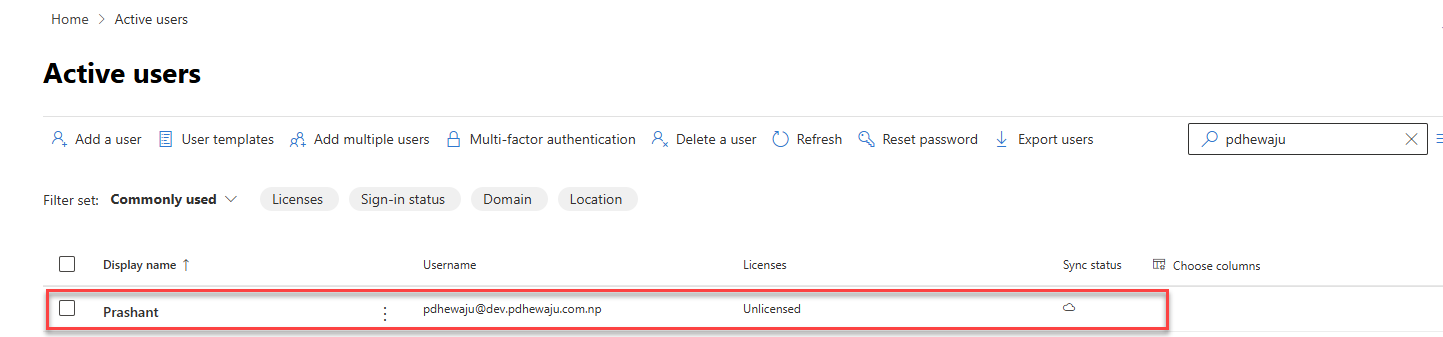
M365 Admin Center — “Prashant” exists as a cloud-only account (☁ sync status). UPN: pdhewaju@dev.pdhewaju.com.np
| 2 | Create the On-Premises AD User |
In Active Directory Users and Computers (ADUC), create a new user with attributes — especially UPN and mail — that closely match the cloud account. Place them in a dedicated OU (e.g., “unsync”) to keep them out of the Azure AD Connect sync scope until you are ready.
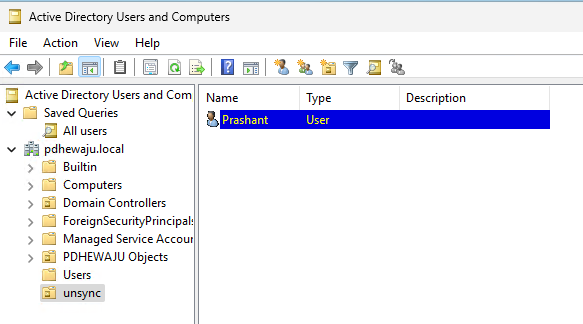
ADUC — on-premises user “Prashant” created in the “unsync” OU of pdhewaju.local, isolated from sync scope
| 3 | Get the objectGUID and Convert to ImmutableID |
On a domain-joined machine with the AD PowerShell module, run the following to retrieve and convert the objectGUID to the base64 ImmutableID format:
| $user = Get-ADUser -Identity “pdhewaju”
$guid = $user.ObjectGUID $immutableID = [System.Convert]::ToBase64String($guid.ToByteArray()) $immutableID # Copy this value — you need it in Step 4 |
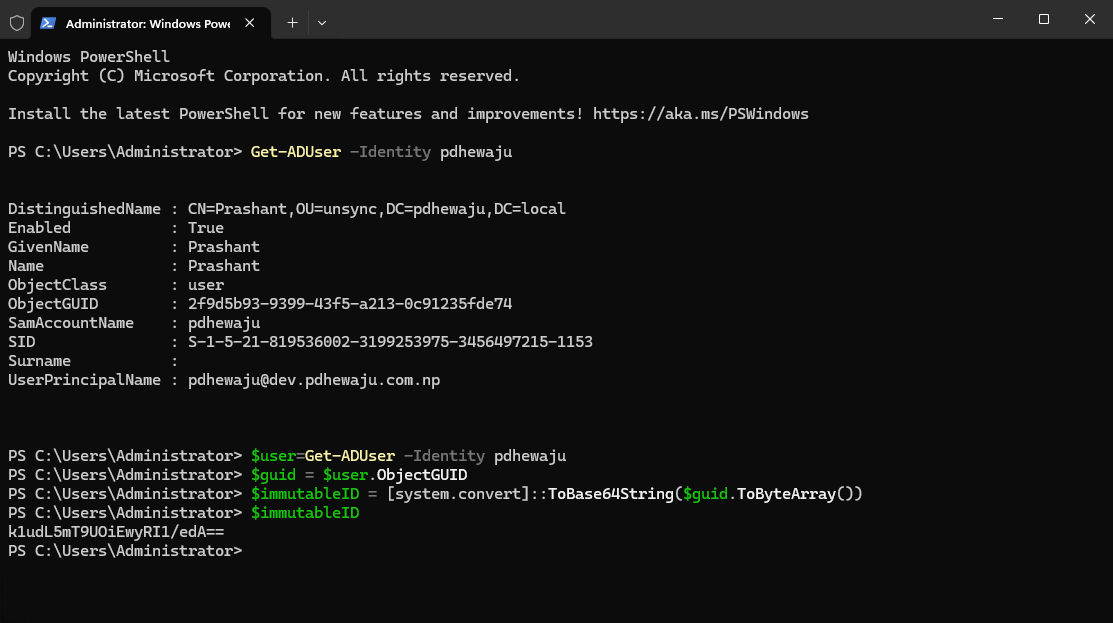
PowerShell — objectGUID (2f9d5b93-…) converted to ImmutableID: k1udL5mT9UOiEwyRI1/edA==. Copy this value exactly.
| 📋 What to copy: The output on the last line is your ImmutableID. In this example: k1udL5mT9UOiEwyRI1/edA== — even one wrong character will break the match. |
| 4 | Set the ImmutableID on the Cloud User |
Connect to Microsoft Graph with the required permissions, then stamp the ImmutableID onto the existing cloud-only user:
| # Connect to Microsoft Graph
Connect-MgGraph -Scopes “User.ReadWrite.All”,”Directory.ReadWrite.All” # Set the ImmutableID Update-MgUser -UserId “pdhewaju@dev.pdhewaju.com.np” -OnPremisesImmutableId $immutableID # Verify (may show blank — see note below) Get-MgUser -UserId “pdhewaju@dev.pdhewaju.com.np” | Select-Object OnPremisesImmutableId |
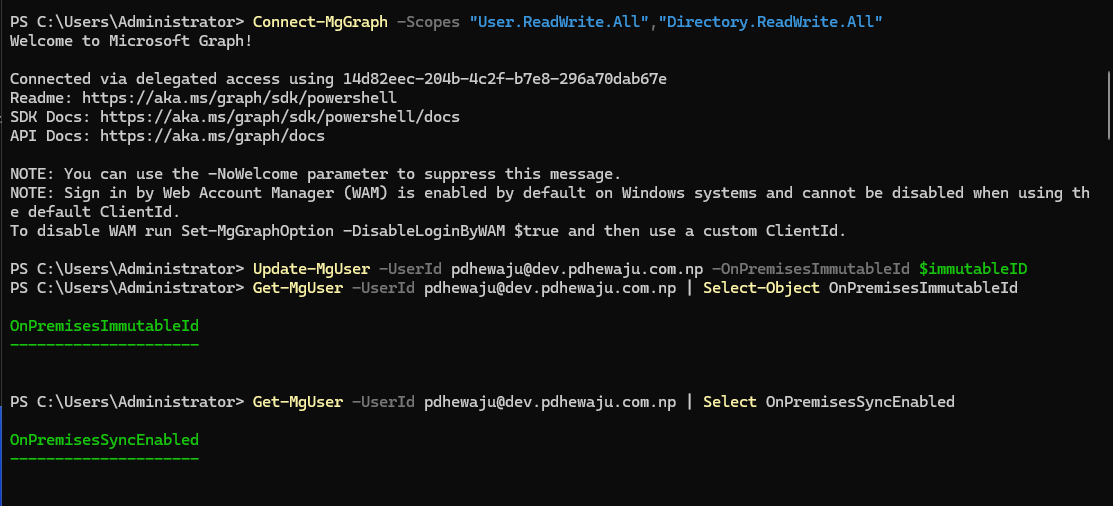
PowerShell — Connect-MgGraph authenticating, then Update-MgUser setting OnPremisesImmutableId on the cloud user
| ⚠️ Known quirk: Get-MgUser may return blank for OnPremisesImmutableId even after a successful update. This is a display issue — verify the value in the Entra ID portal (next step) instead. |
| 5 | Verify the ImmutableID in Entra ID Portal |
Go to entra.microsoft.com → Users → [user] → Properties. Scroll to the “On-premises” section and confirm the On-premises immutable ID field is populated with the value from Step 3.
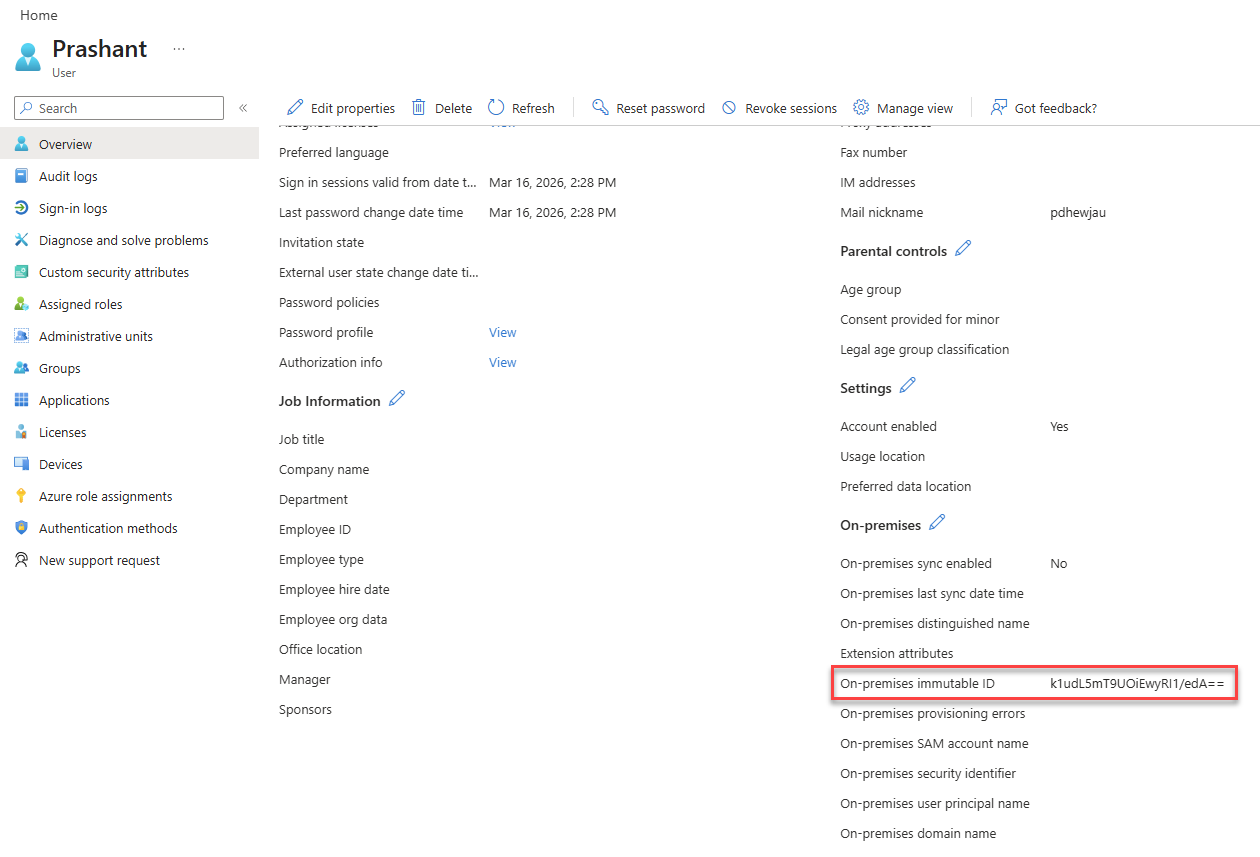
Entra ID portal — “On-premises immutable ID” field shows k1udL5mT9UOiEwyRI1/edA== (highlighted). “On-premises sync enabled” is still “No” — this updates after the next sync.
| 6 | Run Azure AD Connect Sync and Confirm |
Move the on-premises user into an OU that is included in the Azure AD Connect sync scope, then trigger a sync cycle from the Azure AD Connect server:
| Start-ADSyncSyncCycle -PolicyType Delta |
After sync completes, go back to M365 Admin Center → Active users. The sync status icon for the user should now show a building/server icon 🏢 instead of the cloud icon ☁ — confirming the hard-match succeeded.
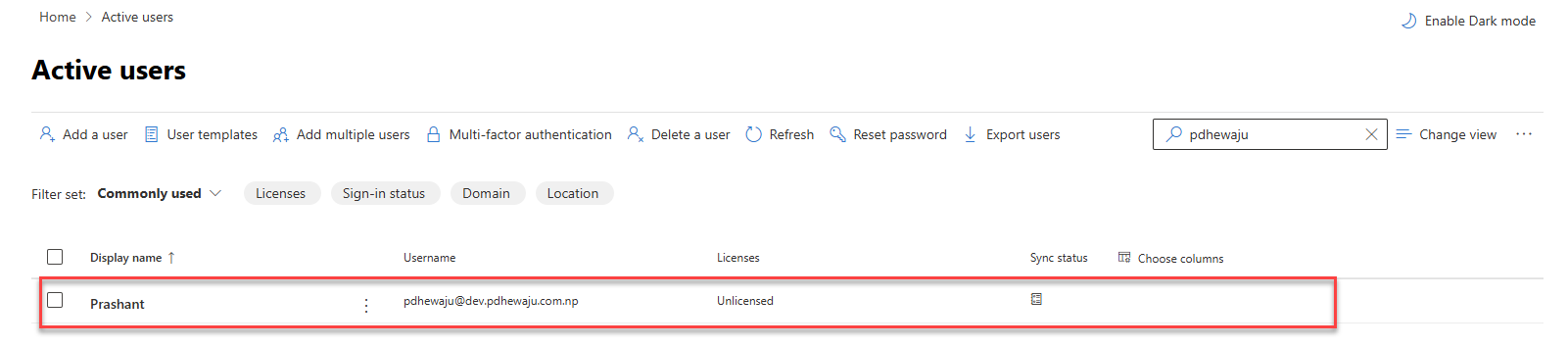
M365 Admin Center — sync status icon changed from ☁ (cloud-only) to 🏢 (synced from on-premises). Hard-match confirmed.
| 7 | Deep Verify via Synchronization Service Manager |
For technical confirmation, open Synchronization Service Manager on the Azure AD Connect server. Find the latest export operation, open the user’s Connector Space Object Properties, and check:
- Modification type = “update” (not “add”) — means no new account was created
- sourceAnchor shows the same ImmutableID value in both Old Value and New Value columns
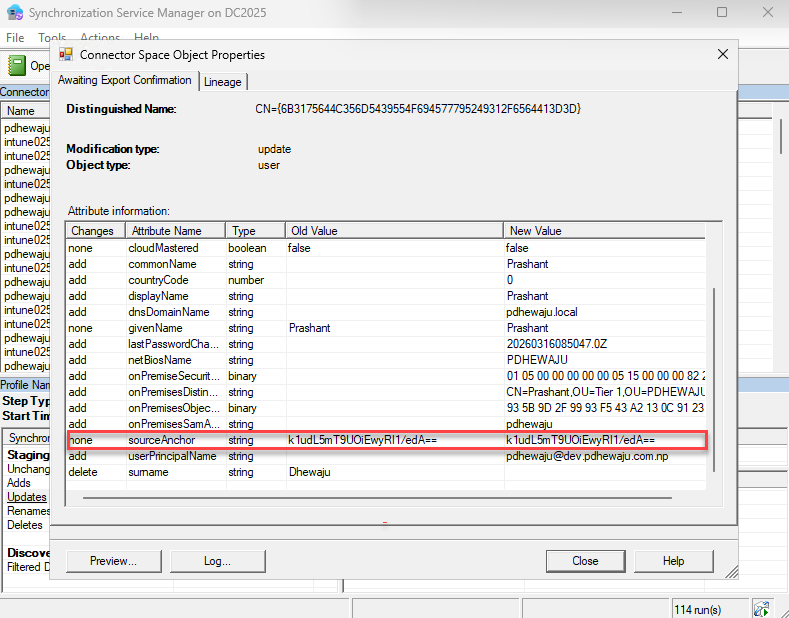
Sync Service Manager — modification type “update” confirms the existing cloud account was matched, not duplicated. sourceAnchor = k1udL5mT9UOiEwyRI1/edA== in both columns.
At this point, the hard-matching is done. The sync icon changed. The Sync Manager confirms an update — not an add. The user “Prashant” has one account, the same email, the same license, and the same Teams history as before. From the user’s perspective, nothing happened. That is exactly what a successful migration feels like.
Quick Troubleshooting Reference
| Issue | Fix |
|---|---|
| Duplicate account created after sync | ImmutableID was set incorrectly or after the sync ran. Clear it with Update-MgUser -OnPremisesImmutableId $null, correct the value, and re-sync. |
| Get-MgUser returns blank ImmutableID | Known display quirk. Verify in Entra ID portal instead — the attribute is stored correctly. |
| Sync type shows “add” not “update” | The ImmutableID did not match. Check for typos in the base64 value; re-run the conversion script. |
| Licensing gap after sync | Plan changes for off-hours. Use group-based licensing to avoid direct-assignment disruptions. |
| UPN changes after sync | Ensure on-prem UPN suffix matches the verified domain in M365. Set it in ADUC before syncing. |
Key Takeaways
- One identity, zero duplicates: The hard-match merges accounts — mailbox, licenses, OneDrive, and policies stay intact.
- ImmutableID is permanent: Derived from objectGUID, it is the definitive link between on-prem and cloud. Get it right once.
- Use Microsoft Graph PowerShell: The deprecated MSOnline module (Set-MsolUser) was retired in 2025. Graph PowerShell is the only supported path.
- Always verify in two places: Entra ID portal (Step 5) for the attribute, Sync Manager (Step 7) for the merge confirmation.
- Test first: One non-production user run costs five minutes and saves a weekend of incident response.
Back to That Friday Afternoon
Remember the IT manager who lost their weekend? After learning this lesson the hard way, they went back and built a proper pre-migration checklist. From then on, every new on-premises user that needed to match a cloud account got hard-matched first — before Azure AD Connect ever ran. The process took five minutes per user. Not 40 hours.
The next time a colleague called them asking why Azure AD Connect was creating duplicates, they knew exactly what to say: “Stop the sync. Set the ImmutableID. Then run it.”
This blog is that phone call — before the problem happens to you.

Hiren’s bootcd 10.1….now available.
[Solved]The Computer account ‘DAG’ could not be validated. Access was denied. Check that the current user (NT AUTHORITY\SYSTEM) has permissions to create computer accounts in the domain or to claim the computer account.
Windows 7 UAC Vulnerability…FIXED
About Author

pdhewjau
Prashant Dhewaju is a Microsoft MVP and Microsoft 365 Adoption Consultant with deep expertise in cybersecurity and modern workplace solutions. He advises organizations across Nepal and the broader region on securely adopting Microsoft 365, improving productivity, strengthening security posture, and driving effective change management. His prior position as a Modern Work Security Specialist at Microsoft saw him providing invaluable guidance to major clients in Bangladesh, Brunei, Cambodia, and Myanmar, assisting them with their foundational security needs. Awarded the esteemed Microsoft Most Valuable Professional (MVP) accolade in 2017, Prashant is recognized globally among Microsoft peers. Since 2010, he has imparted his expertise as a Microsoft Certified Trainer (MCT), conducting specialized training across Nepal.